
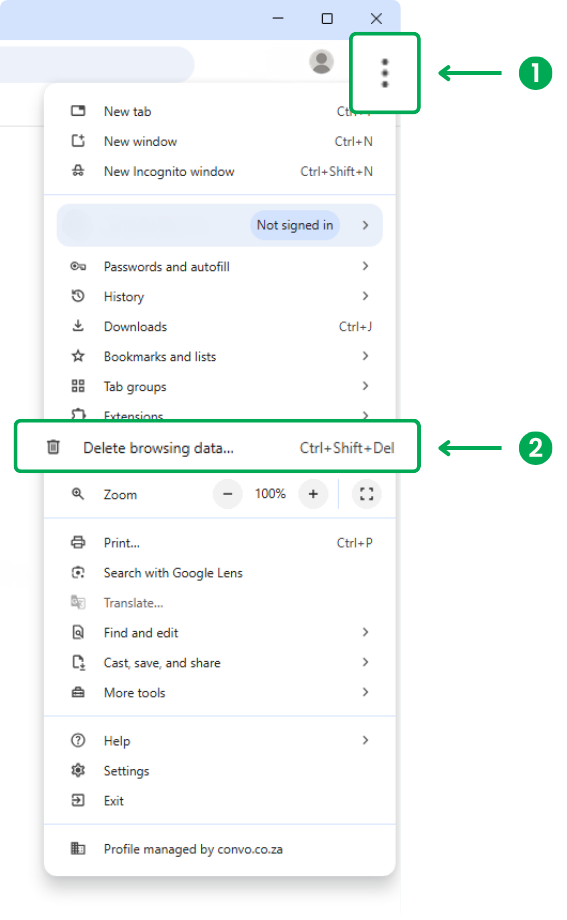
Step 1: Open Chrome (Mac/ Windows) and click the 3 dots in the top-right corner of the browser.
Step 2: Select Delete browsing data.
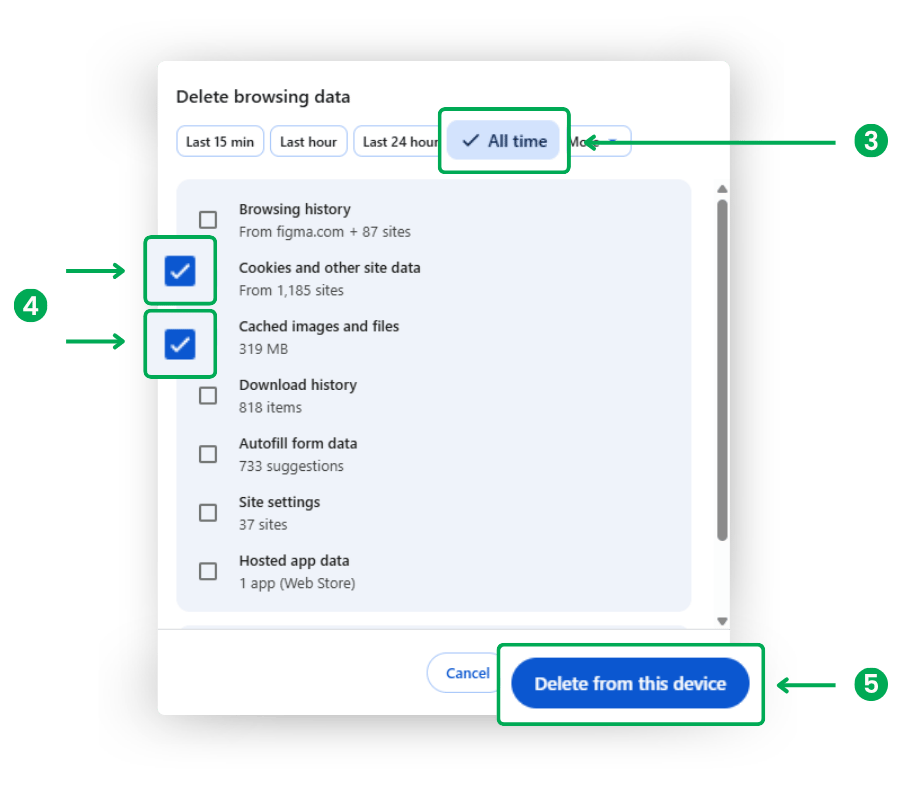
Step 3: The Delete browsing data pop-up appears and selects time range, All time.
Step 4: Mark the options: Cookies, and Cached images and files.
Step 5: Click on the Delete from the device button.
Keyboard shortcuts to open “Delete Browsing data” page.
Windows: Ctrl + Shift + Delete
Mac: Command + Shift + Delete
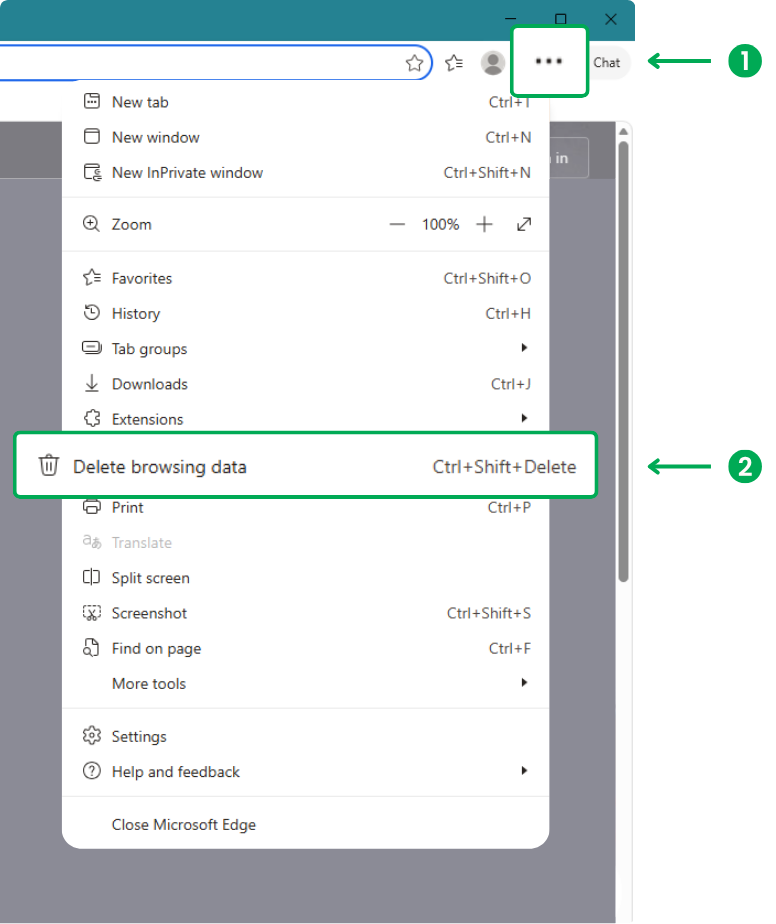
Step 1: Open Edge Browser (Mac/Windows) and click the 3 dots in the top-right corner of the browser.
Step 2: Select Delete browsing data.
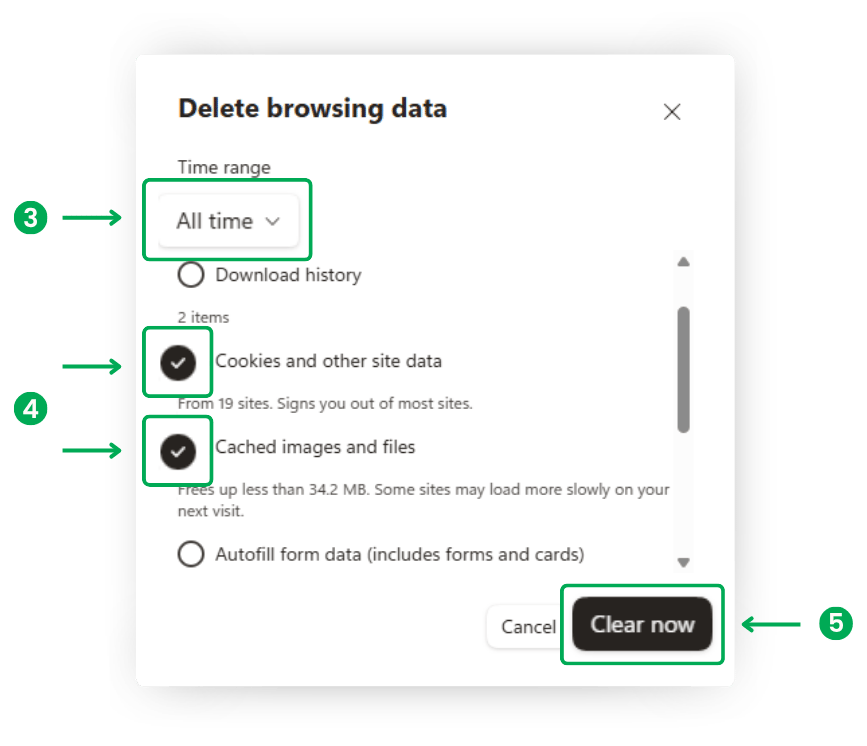
Step 3: The Delete browsing data pop-up appears and selects time range, All time.
Step 4: Mark the options: Cookies and other site data, and Cached images and files.
Step 5: Click on the Clear now button.
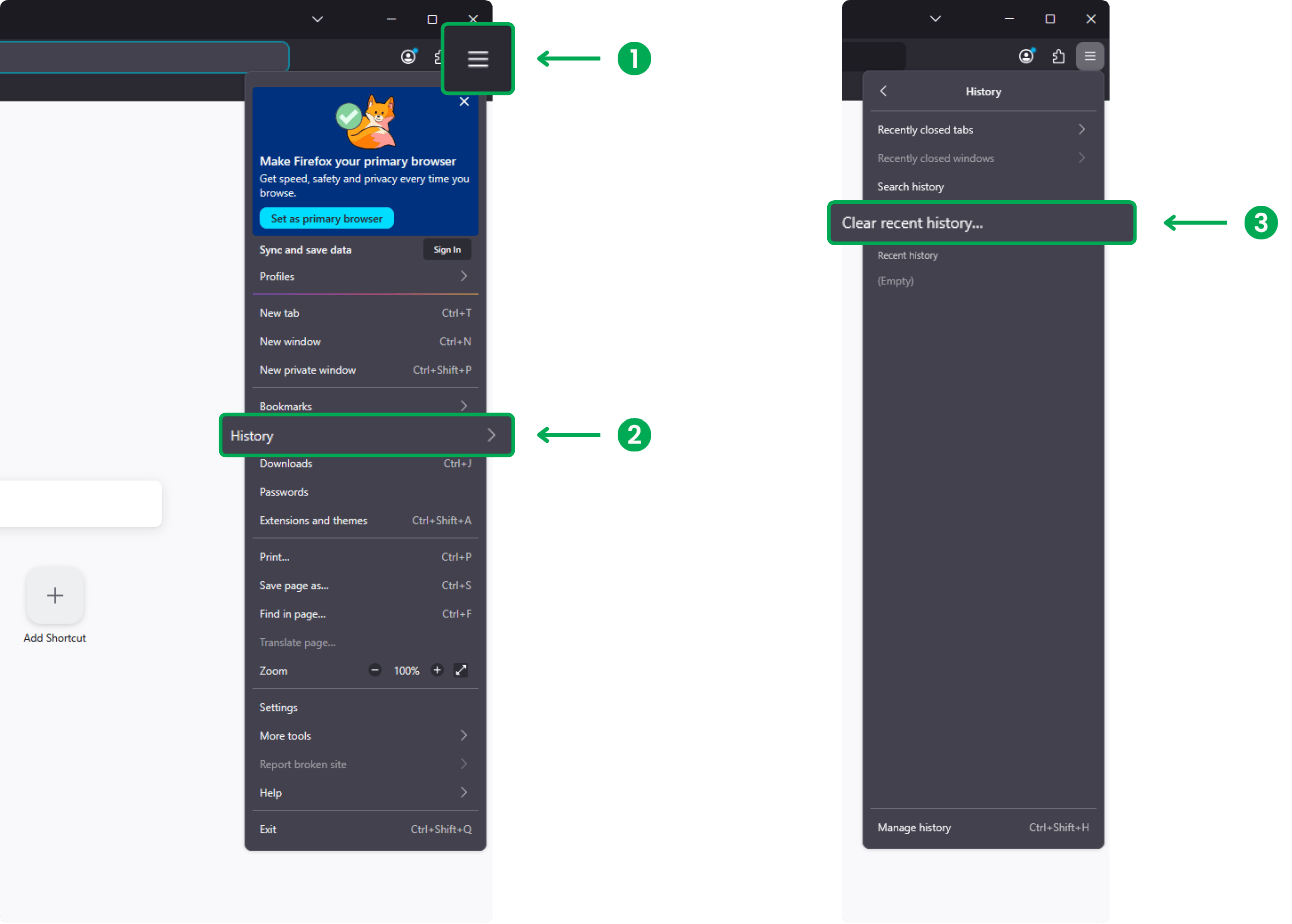
Step 1: Open Firefox (Mac/ Windows) and click the 3 lines in the top-right corner of the browser.
Step 2: Select History.
Step 3: Then select Clear recent history…
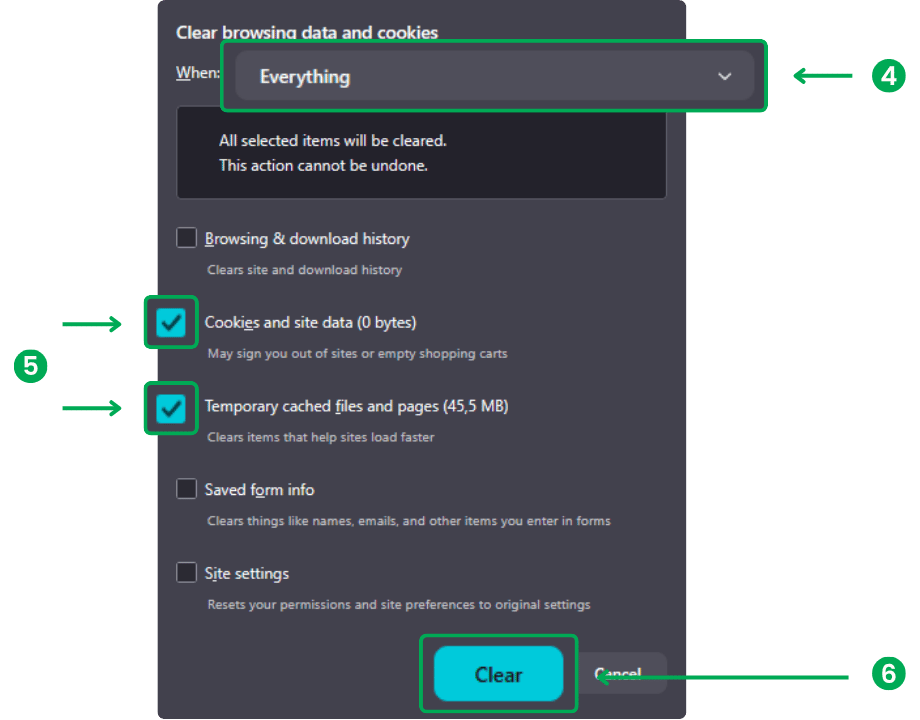
Step 4: The Clear browsing data and cookies pop-up appears and selects when range, Everything.
Step 5: Mark the options: Cookies and the site data, and Temporary cached files and pages.
Step 6: Click on the Clear button.
Steps to clear browsing Data in Safari
Method 1: Clear history + Cookies + Cache
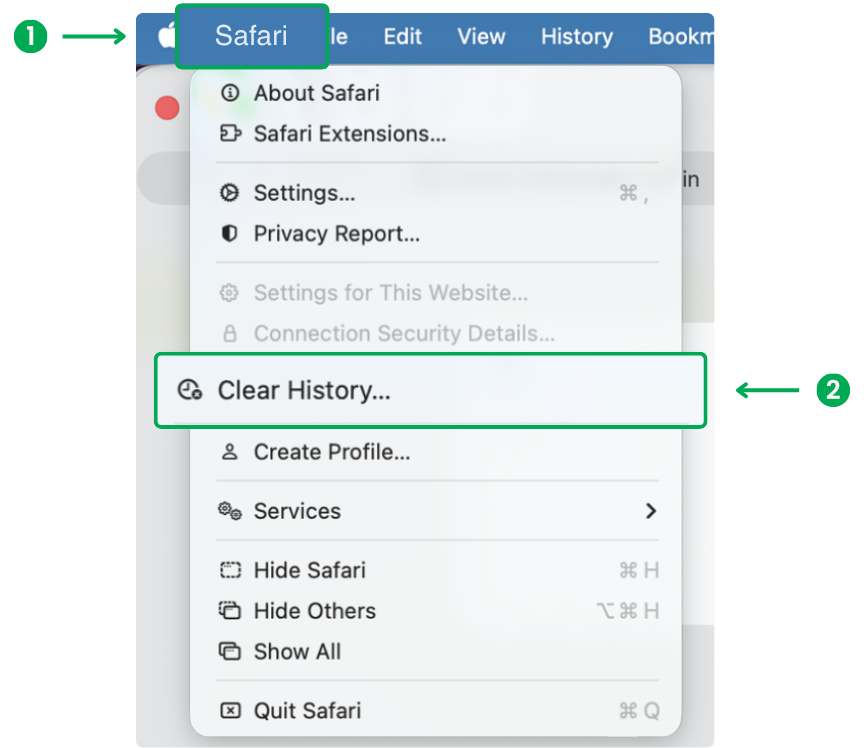
Step 1: Open Safari (Mac) and click Safari in the top menu bar.
Step 2: Select Clear History…
Step 3: In the pop-up, choose All History.
Step 4: Click the Clear History button.

------
Method 2: Clear only cookies and cache (more control)
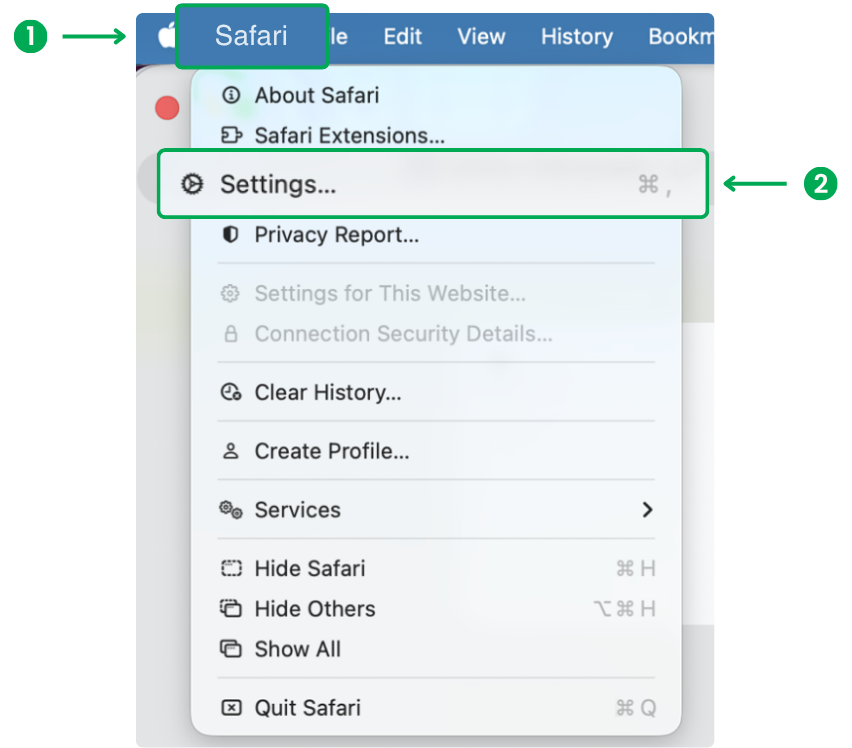
Step 1: Open Safari (Mac) and click Safari in the top menu bar.
Step 2: Click Settings (or Preferences).
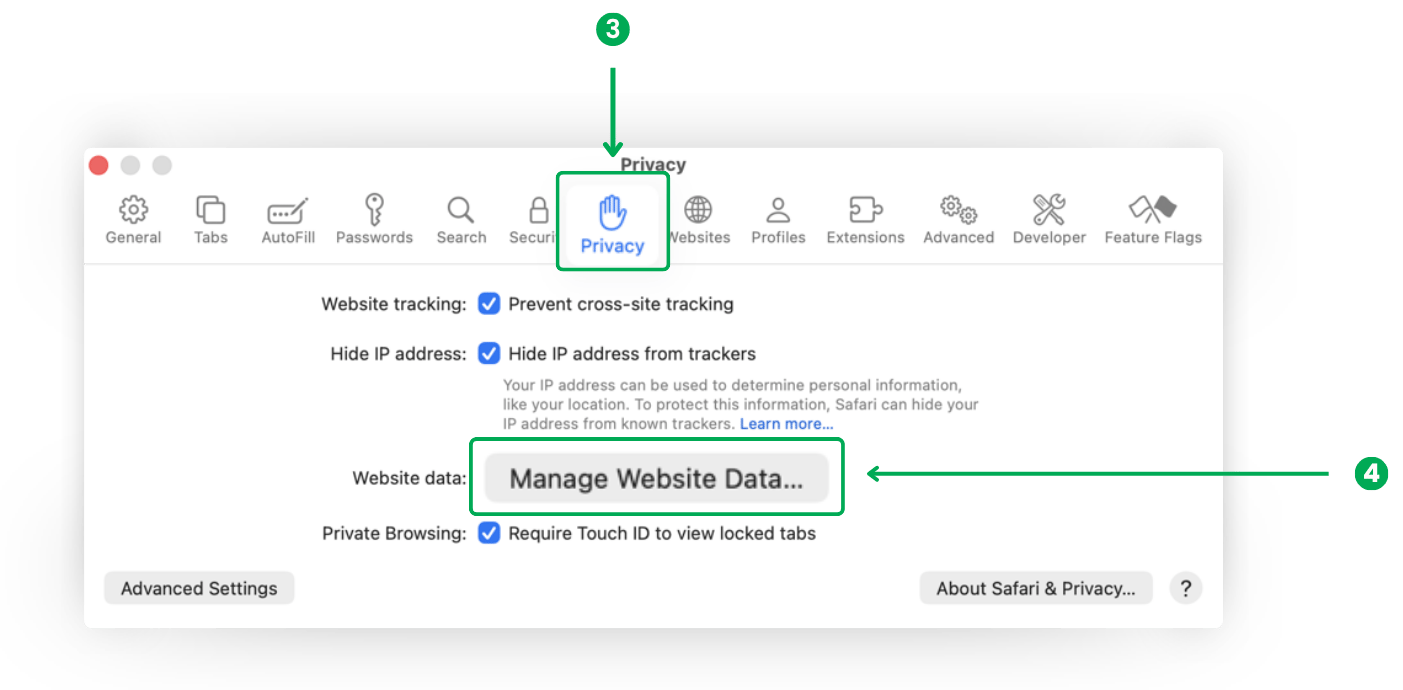
Step 3: Go to the Privacy tab.
Step 4: Click Manage Website Data…
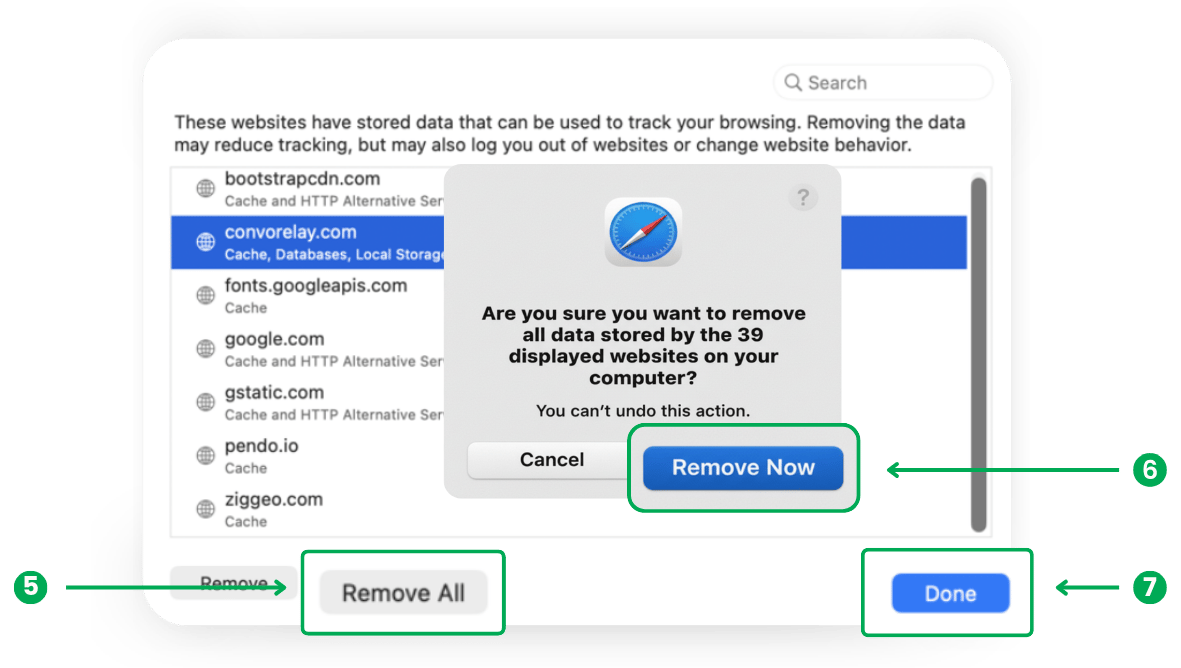
Step 5: Click the Remove All button.
Step 6: Confirm by clicking the Remove Now button.
Step 7: The stored data will be empty on the websites list. Click the Done button.
Reference: Clear cookies in safari on Mac