
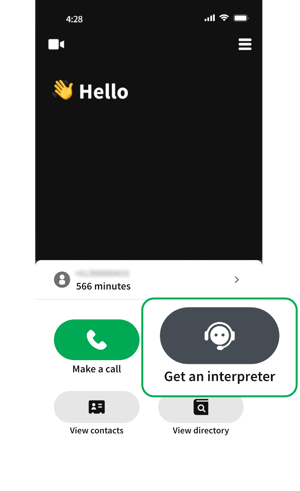
i. Open the FaceTime app and select “New FaceTime” at the bottom of the screen
ii. Select the green Link button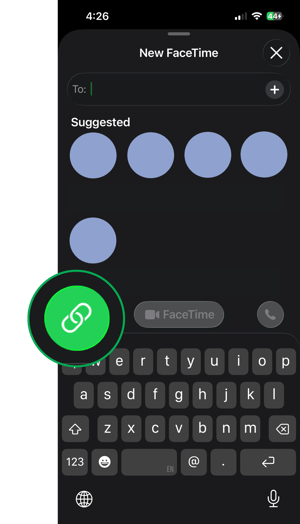
iii. Select “Copy Link”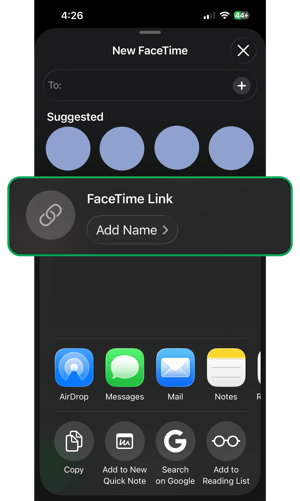
iv. Paste the link into the chat in the Convo Now app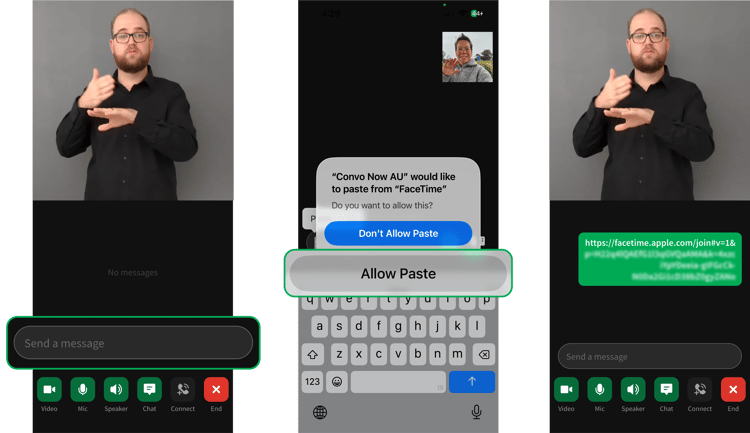
v. Return to FaceTime and start call. Wait for the interpreter to join the video call or meeting. Once connected, you can keep Convo Now app open or minimise it while your conversation continues.
i. During your call, select the participant or meeting name at the top of the screen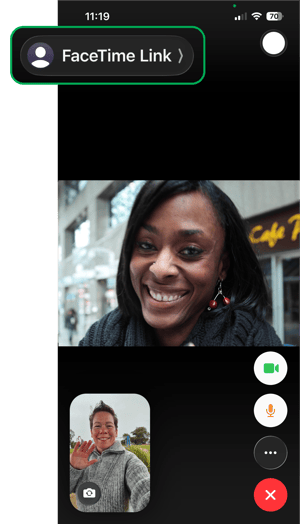
ii. Select “Share Link”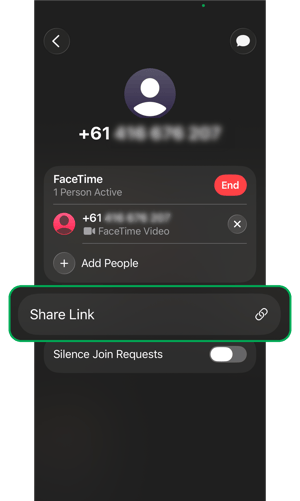
iii. Select “Copy”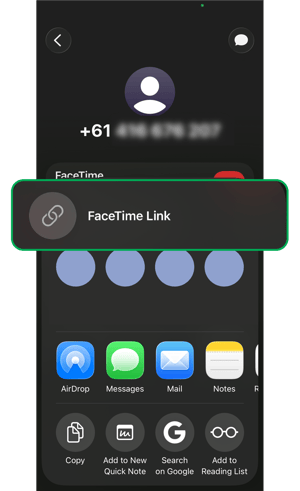
iv. Paste the link into the chat in the Convo Now app
v. Return to FaceTime and continue your call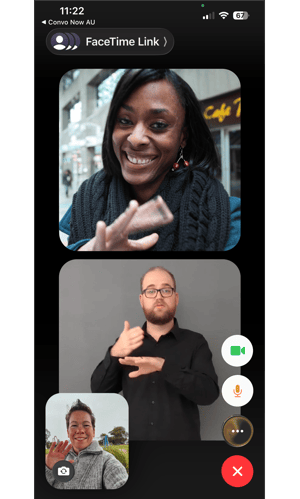
v. Once connected, you can keep Convo Now app open or minimise it while your conversation continues.