Skip to content

How to add interpreter to your FaceTime?

Need a Convo interpreter when you are joining FaceTime call? No worries! Here’s a simple step-by-step guide.

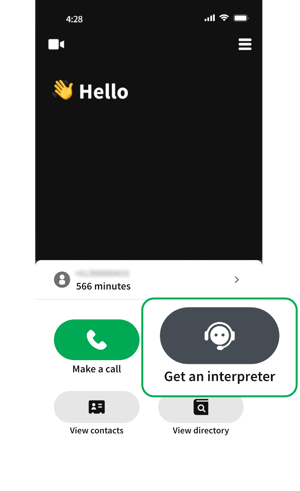
Step 1: Open the app on your device (desktop, tablet, or smartphone). For the best video conference experience, we recommend using a desktop.

Click “Get an Interpreter” and share a brief background about the meeting.

FaceTime step 3

Step 2: Open FaceTime app. There are two ways to get your FaceTime link.

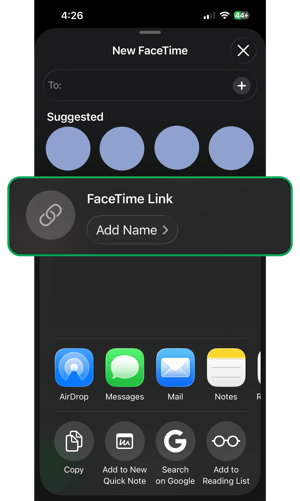
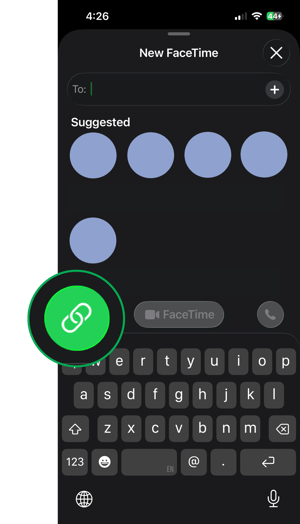
i. Open the FaceTime app and select “New FaceTime” at the bottom of the screen

ii. Select the green Link button
FaceTime step 1

iii. Select “Copy Link”
FaceTime step 2

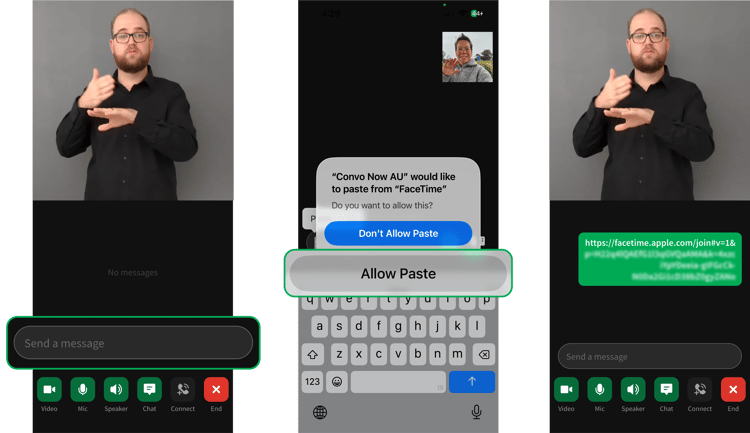
iv. Paste the link into the chat in the Convo Now app
FaceTime step 4 5 6 in one

v. Return to FaceTime and start your call

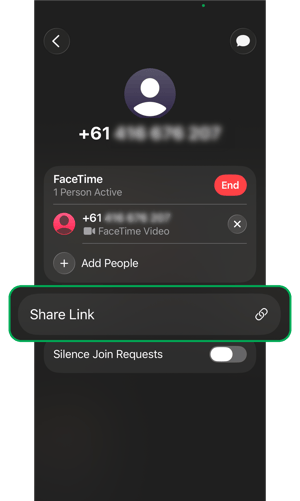
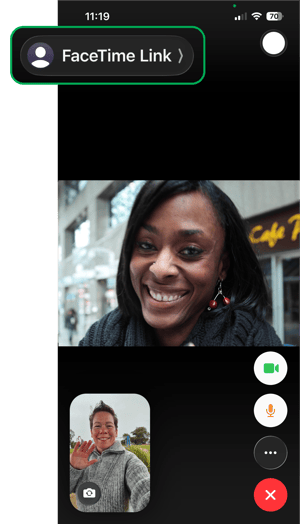
i. During your call, select the participant or meeting name at the top of the screen
FaceTime step 1 OB


ii. Select “Share Link”
FaceTime step 2 OB


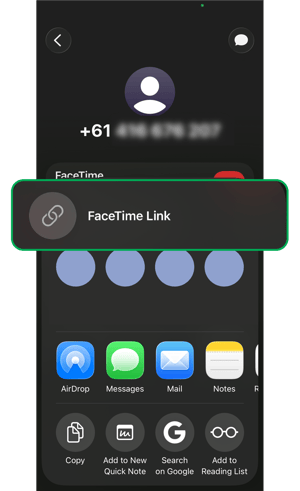
iii. Select “Copy”
FaceTime step 3 OB


iv. Paste the link into the chat in the Convo Now app
FaceTime step 4 5 6 in one

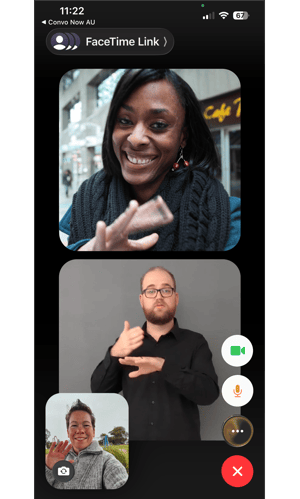
v. Return to FaceTime and continue your call
FaceTime step 4 OB

Step 3: Wait for the interpreter to join the video call or meeting. Once connected, you can keep the app open or minimise it while your conversation continues.

FaceTime step 7
FaceTime step 8

Your session time will continue to be tracked until the interpreter leaves the video call, at which point usage from your plan will automatically stop.